
How to Speed Up a Slow Android Phone
Introduction: Why Android Phones Slow Down
Over time, even the best Android smartphones can start to feel sluggish. Apps take longer to open, scrolling becomes choppy, and the battery drains faster than usual.
The causes are often simple: full storage, background apps, outdated software, or overloaded cache. Fortunately, there are proven ways to bring your device back to life.
In this guide, we’ll show you how to speed up a slow Android phone step by step — using system tools, optimization tricks, and reliable resources.
1. Restart Your Phone Regularly
A simple restart can fix more than you’d think. It clears temporary files, resets background processes, and refreshes memory allocation.

Tip: If you haven’t restarted your phone in weeks, do it now — it’s the quickest way to free up system resources and close unnecessary apps running in the background.
2. Clear App Cache and Storage
Every time you open an app, it stores data — images, scripts, temporary files. Over time, these caches grow and slow the system down.
How to clear cache:
- Go to Settings → Apps.
- Select an app (like Chrome or Instagram).
- Tap Storage → Clear Cache.
For apps that haven’t been used in months, you can also Clear Storage to remove residual files completely.
3. Uninstall or Disable Unused Apps
Many phones come with pre-installed “bloatware” that you never use but still runs silently in the background.
How to remove them:
- Go to Settings → Apps → All Apps.
- Tap the app you don’t use.
- Choose Uninstall or Disable if uninstall isn’t possible.
Removing these unnecessary apps reduces CPU load and background network activity.
4. Free Up Space with Smart Tools
If your storage is nearly full, Android’s performance will suffer. Files by Google or SD Maid are great utilities for cleaning junk files, large downloads, and duplicate photos.
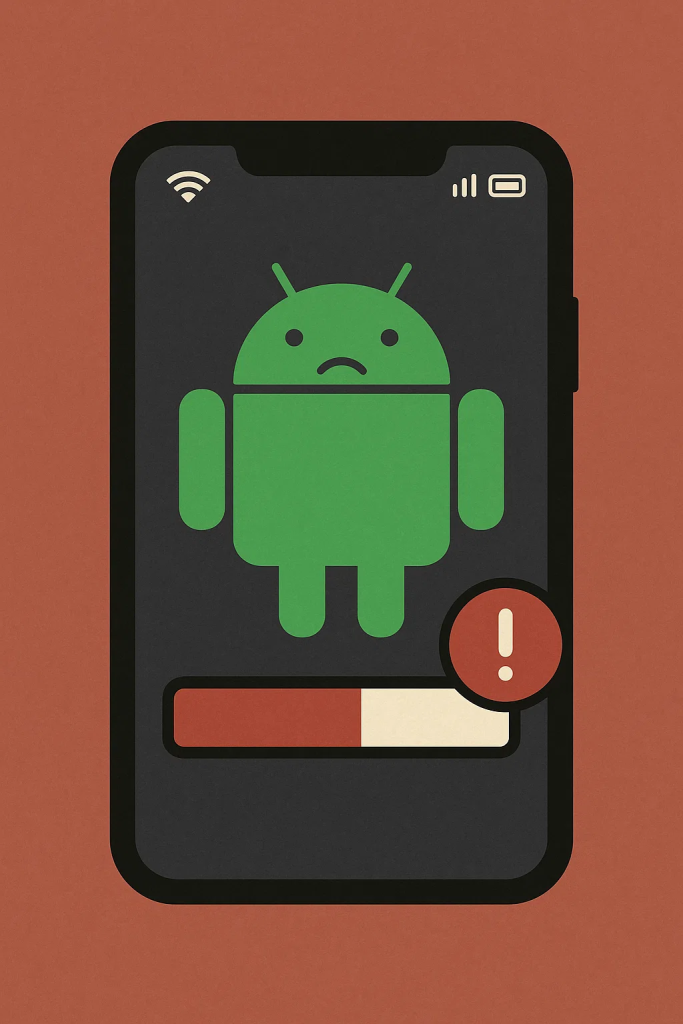
You can also back up media to Google Photos or another cloud service. Once uploaded, delete local copies to regain gigabytes of storage instantly.
If you save a lot of social media content, you can also click here to download and store only what you need in optimized quality — keeping your phone clutter-free.
5. Update Your Software and Apps
Outdated software can introduce performance bugs and security risks. Regular updates include optimizations that make your phone run smoother.
To update:
- Go to Settings → System → System Update.
- Update all apps in Google Play → Manage Apps & Device → Update All.
Keeping your Android up-to-date ensures better memory management and fewer compatibility issues.
6. Disable Animations and Transitions
Visual effects look nice but can slow older devices.
How to speed them up:
- Go to Settings → About Phone → Build Number (tap seven times to enable Developer Options).
- Navigate to Developer Options.
- Set Window Animation Scale, Transition Animation Scale, and Animator Duration Scale to 0.5x or Off.
You’ll immediately notice snappier transitions and faster menu responses.
7. Limit Background Processes
Some apps constantly refresh content in the background — social networks, weather, or email clients.
To manage background activity:
- Go to Settings → Battery → Battery Usage.
- Identify power-hungry apps.
- Restrict background activity for non-essential ones.
Alternatively, enable Battery Saver mode for automatic system-level optimization.
8. Use Lite Versions of Heavy Apps
Popular apps like Facebook, Messenger, and Instagram have lightweight “Lite” versions that use less RAM and data.
Switching to these versions can dramatically improve performance, especially on older devices.
They also reduce battery drain and prevent overheating caused by intensive background syncing.
9. Remove Widgets and Live Wallpapers
Live wallpapers and widgets constantly consume CPU and GPU resources. Replacing them with static images and simple icons can significantly improve responsiveness.
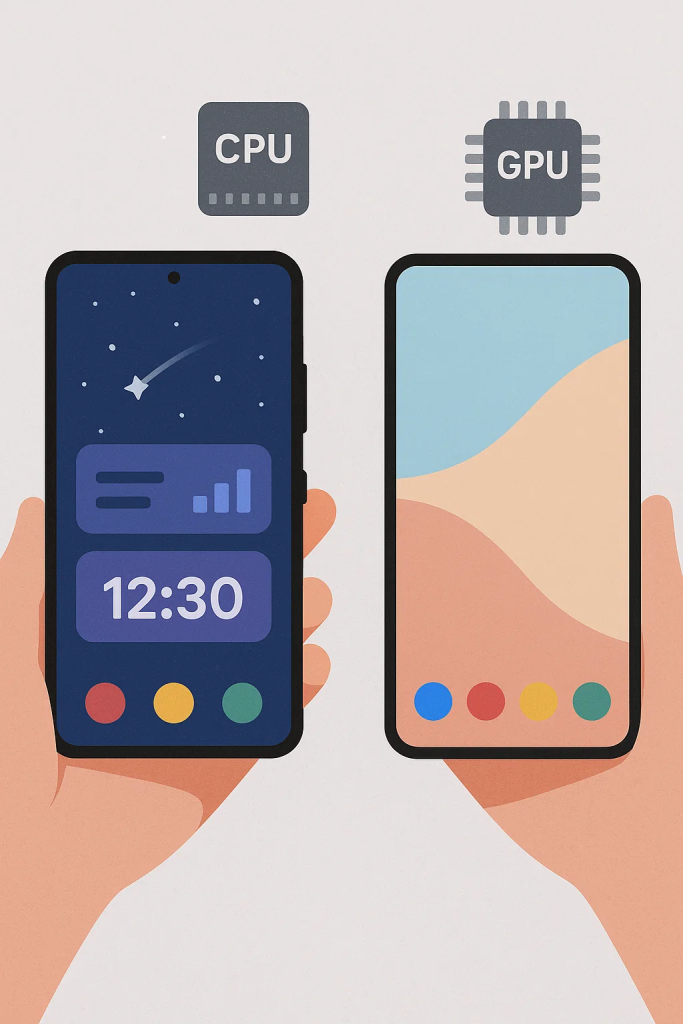
Tip: Avoid using too many home screen pages — one or two well-organized screens are more efficient.
10. Factory Reset (as a Last Resort)
If your phone is still slow after trying everything else, consider performing a factory reset.
Warning: This erases all your data, so back up your photos, contacts, and files first.
To reset:
- Go to Settings → System → Reset Options → Erase All Data (Factory Reset).
After rebooting, reinstall only the apps you truly need. Your phone will feel like new again.
Expert Insights from TechRadar
According to the TechRadar article, most slowdowns aren’t caused by hardware limitations but by poor storage management and outdated software.
TechRadar’s experts recommend:
- Avoiding “RAM booster” or “cleaner” apps, as they often create more problems.
- Using official system tools and verified apps instead.
- Scheduling regular cleanups and updates.
They also note that minimalist tools like Twvideodownloader are better alternatives for downloading and organizing media because they don’t run in the background or consume extra resources.
Bonus Tip: Monitor Performance with Built-In Tools
You can check what slows your phone down by visiting Settings → Developer Options → Running Services.
This shows which apps consume the most RAM or CPU, letting you disable or uninstall them.
Conclusion
A slow Android phone doesn’t always need replacing — just a little maintenance. By clearing caches, removing unnecessary apps, and managing updates, you can restore speed and extend your phone’s lifespan.
With a few adjustments, your smartphone can feel fast, responsive, and ready for 2025.